How to Use Canva’s New Photo Blur in Your Designs
Welcome to your next creative breakthrough. If you’ve dabbled in Canva lately you might have spotted something exciting a fresh way to add focus, mood and elegance to your designs. Whether you’re designing social media posts, invitations, presentations, branding material or simply sprucing up your website images Canva’s photo blur tools offer a simple, yet powerful, way to transform your visuals.
Let’s get into what these features actually are and how to use them like a pro.
What’s all the Fuss About?
Canva offers several ways to apply blur to your photos. One of the simplest is the photo blur slider in the image editing tools. Upload your image, select it, then click Edit Image. Look for Adjust or Advanced Options and slide the blur control to soften your image or sharpen it. If you slide it in the opposite direction yes, it doubles as a sharpen tool too.
For more controlled effects, Canva provides an Auto Focus tool. This clever little feature automatically detects the subject in your image and leaves it sharp while softly blurring the background.
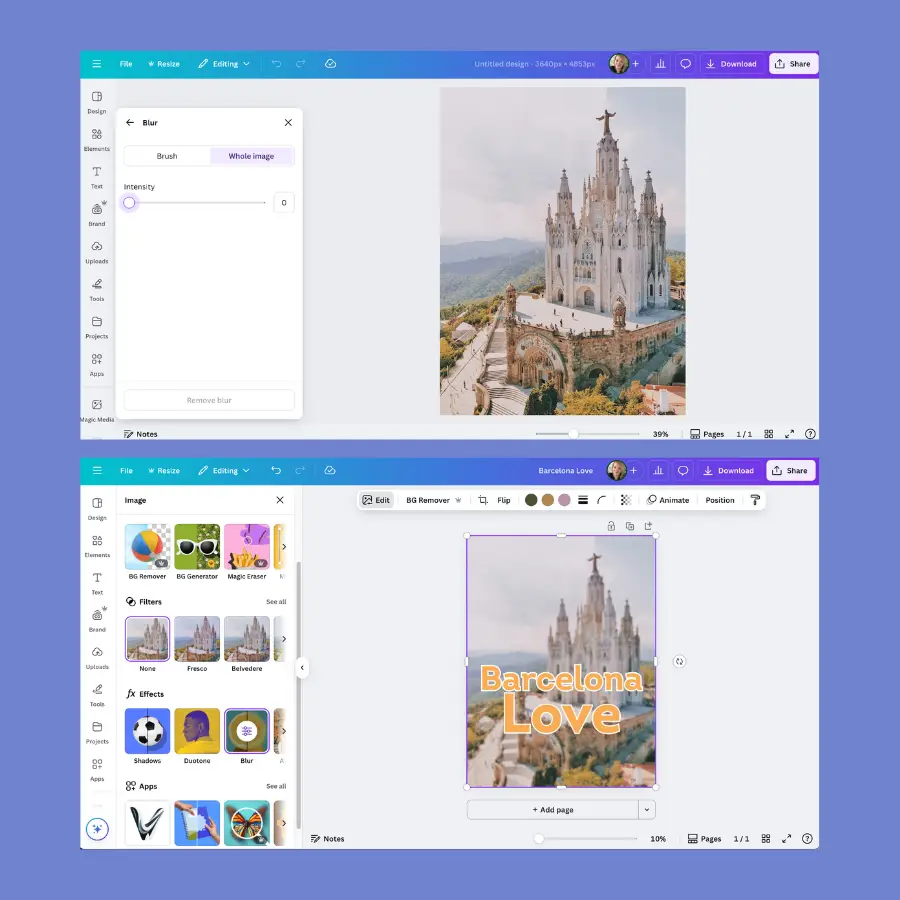
And for ultimate precision, Canva now includes a blur brush tool. With that, you can paint blur selectively over parts of your image, choose the brush size and intensity and even decide whether to apply blur to the whole image.
All of this means you can craft designs with dreamy atmospheres, cleaner focal points and more striking messaging without the need for complex software.
Why Blurring Works Wonders in Graphic Design
Blur is not just a trend. It’s a clever design tool that adds clarity, depth and emotional resonance. The Canva “Design with a blurred background” guide outlines ten expert techniques that use blur to de‑emphasise busy backgrounds, set a mood, make typography pop, and draw attention where it matters most.
To bring a few of those ideas to life:
Declutter your background: A softly blurred photo behind text makes headlines cleaner to read and more compelling.
Direct attention: Auto Focus or brush blur helps you lead the viewer’s gaze exactly where you want it.
Set emotion or mood: Subtle blur adds a dreamy quality, while stronger blur can turn background imagery into abstract colour or texture.
Support brand storytelling: Even a blurred photo can hint at your brand world or location, without distracting from your message.
Step by Step: How to Add Blur in Canva
Let’s walk you through using these tools in a typical Canva design project.
Option 1: Overall Blur with the Slider
Upload your photo or choose one from Canva’s library.
Click it once to select it.
Click Edit Image, then open Adjust or Advanced Options depending on the interface.
Use the Blur slider — drag right to soften, left to sharpen.
Download or continue designing as usual.
This method is perfect for backgrounds, overlays, or creating that beautiful “dreamscape” look.
Option 2: One Click Auto Focus
Select your photo.
Click Edit Photo and find Auto Focus.
Apply it and enjoy a crisp subject with the rest subtly blurred.
Use this when your design features a clear subject like a person or product and you want to highlight that without fuss.
Option 3: Precision Blur Brush
Select your image and click Edit Photo.
Look for the Blur option under effects.
Choose Brush or Whole Image blur depending on what you need.
If you choose brush, pick your size and intensity, and then paint blur exactly where you want it.
This is ideal when you want a gradual focus shift, or to hide clutter without sacrificing the rest of the image.
Top Tips: Use Blur Like a Design Pro
1. Start subtle
A gentle blur often works best for backgrounds. It’s enough to tone down distractions without becoming a visual effect itself.
2. Boost readability
Place softer blur behind text to help it stand out. This works brilliantly for quotes, headings or calls to action.
3. Use blur to tell stories
A lightly blurred image of a location or mood setting moment can reinforce your brand or your message without pulling focus.
4. Combine blur with transparency
Try overlaying semi transparent cards or graphic elements on a blurred image. It feels layered while keeping everything crisp and engaging.
5. Draw attention with precision blur
Use the brush tool to blur around a product or a person so they’re instantly the star of the show.
6. Play with extremes
Heavy blur can become an abstract wash of colour and tone ideal if you’re after quiet sophistication or a textile like texture underlay.
7. Mind colour and contrast
Make sure any text or logos placed over a blurred image still have enough contrast. Don’t assume blur guarantees legibility.
8. Use it consistently
If you use blur styles in a campaign, carry them across multiple pieces for visual harmony even if each piece uses a different image.
Real World Example Ideas
1. Social Media Posts
Picture a motivational quote over a gently blurred sunset. The subject glows, the text reads clearly and you’ve got a share worthy image ready in seconds.
2. Event Banners
Blur the background a little, overlay your event title in chunky text and let the audience focus on the date and tagline. Clean, stylish and appealing.
3. Web Hero Images
Use Auto Focus to sharpen your product on the page whilst blurring the showroom or environment behind. Your product jumps out at first glance.
4. Mood Boards
Softly blur travel images or lifestyle scenes to produce visual harmony while hinting at story and place.
Whether you’re an aspiring blogger, small business owner or seasoned designer, Canva’s blur features offer a layer of polish that’s easy to access and powerful in effect. From dreamy atmospheres and subtle brand hints to focused messaging and elevated readability it all becomes possible with just a few clicks.
Use the overall blur slider when you need to tone down distractions. Apply Auto Focus to sharpen your centre of attention. Reach for the precision blur brush when you want fine control and selective artistry.
Blurring is a design secret that taps into human vision itself: people look first at what’s sharp. With Canva’s tools in your hands and the tips above in your mind, you’re ready to craft designs that feel both effortless and intentional.